
Table of Contents
Introduction
In this articule, I’ll show a real example of Power Automate performance optimization, where I reduced a flow execution time from 6 hours to 16 minutes.
I had a Power Automate flow that was taking around 6 hours to complete.
The flow was designed to:
- Retrive all students (around 7,000 records)
- Call an API for each student to get their invoices
- Validate each invoice in the database
- Insert new invoices if they didn’t exist
At first, everything worked correctly… but the performance was extremely poor.
The Original Flow
The original logic was simple:
- Get all students for the database
- Loop through each student
- Call API to get invoices
- For each invoice:
- Validate in SQL if it exist
- insert if not
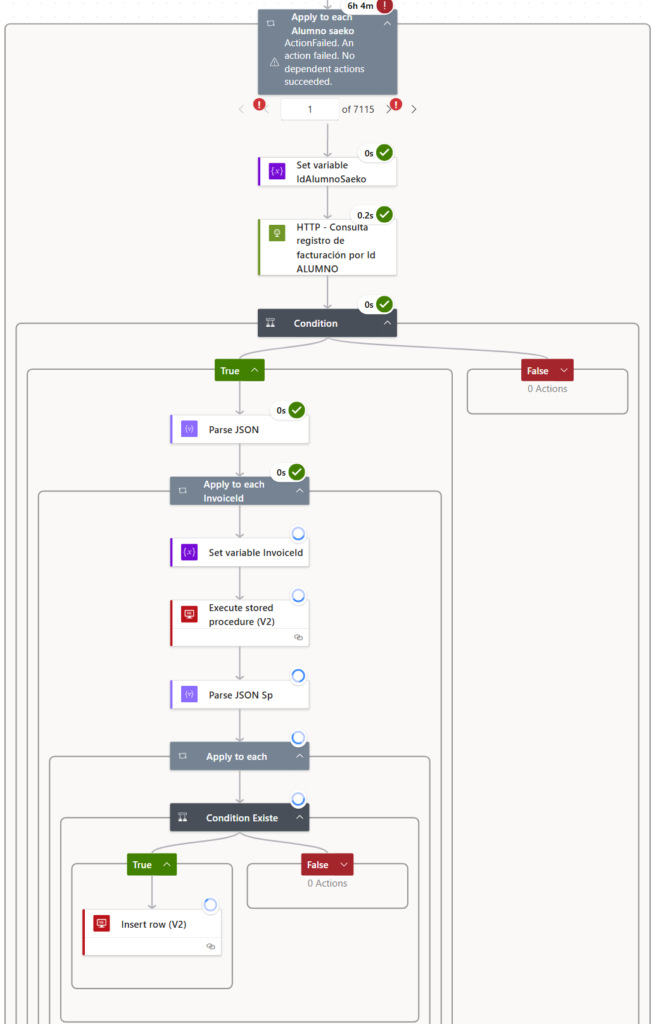
Tha main bottleneck was the per-item SQL validation and insertion:
Each invoice was validated and inserted one by one using SQL actions.
Detected Problems
After analyzing the flow, I identified several issues:
- Too many SQL calls for validation
- Too many SQL insert operations
- No concurrency control (everything ran sequentially)
- Too many nested loops
- No use of in-memory data
Optimization Strategy
Instead of processing everything one by one, I changed the approach:
- Reduce SQL validations
- Use bulk operations instead of individual inserts
- Enable concurrency control
- Remove unnecesary loops
- Store data in memory (arrays)
Implementation (Optimized Flow)
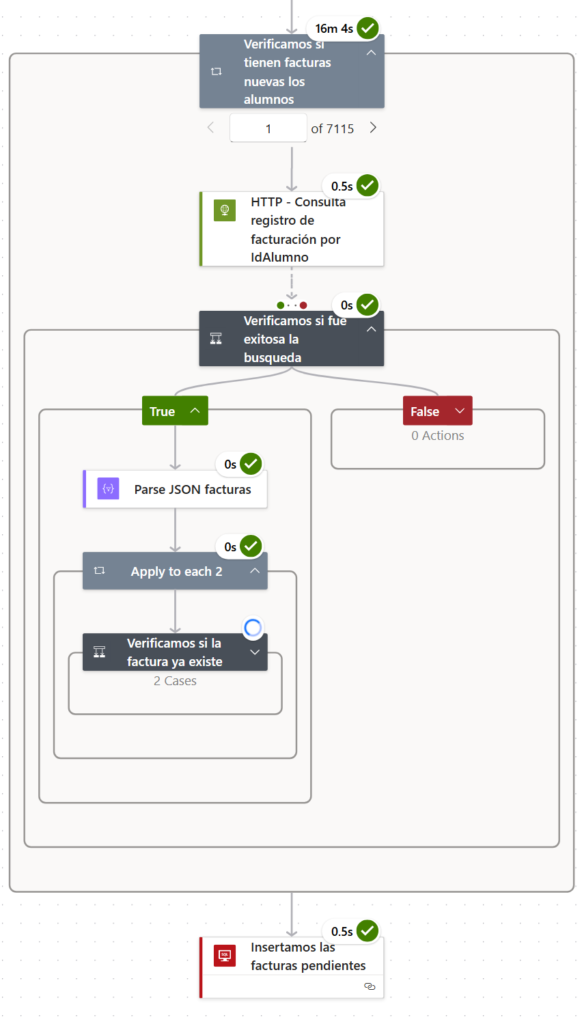
This approach significantly improved the Power Automate performance by reducing database calls and processing data in memory.
In the new version of the flow:
- Retrieve all students and store them in an array
- Retrieve invoices filtered by recent dates (last 60 days)
- Store existing invoices in memory instead of SQL
- Collect new invoices in an array
- Perform a single bulk insert at the end
Results
Power Automate Performance Improvment
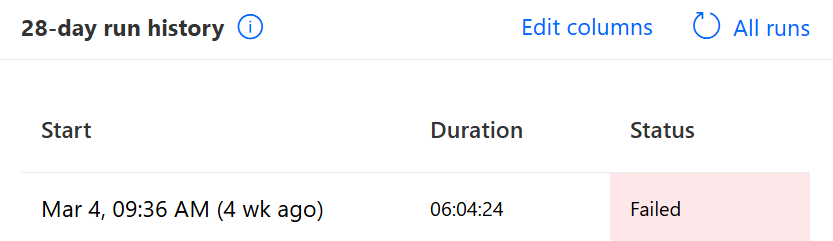
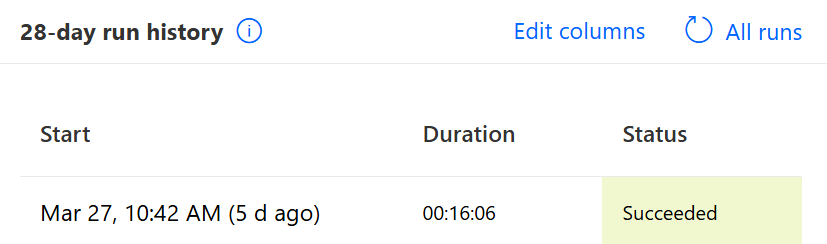
This optimization reduced execution time fro 6 hours to 16 minutes by eliminating unnecessary SQL calls and using bulk operations.
The biggest improvment came from eliminating the per-item SQL validation and insert.
| Metric | Before | After |
| Execution time | 6 hours | 16 minutes |
| Students processed | 7,000 | 7,000 |
Good Practices
From this optimization, these are key takeways:
- Use bulks operations whenever possible
- Avoid unnecessary loops
- Enable concurrency control carefully
- Filter data early (reduce data set size)
- Use in-memory processing instead of repeated database calls
Estimated Cost Reduction
To better understand the impact of this optimization, I created an estimated cost model based on Power Automate action consumption.
In the original flow, each execution requeried around 7,115 SQL actions. After optimization, this was reduced to just 2 SQL action, per execution.
This represents a reduction of over 99% in database operations.
While Microsoft does not provide a fixed cost per action, reducing the number of actions and execution time can lead to substantial cost savings, especially in high-frequency scenarios.
For example, in a scenario with 30 executions per day, the estimated monthly cost can be a reduced from over $80, USD to just a few cents, depending on the licensing model.
Note: These estimates are based on an equivalent cost per action derived from licensing limits, as Microsoft does not publish a fixed cost per action.
Conclusion
If your flow is taking too long:
- Identify the bottleneck
- Reduce external calls (especially SQL)
- Process data in memory
- Use bulk operations
Small changes in desing can lead to masssive performance improvements.
Related Resource
If you want to learn more about Power Automate fundamentals, you can check the official documentation
🔗 Official Documentation
Learn more about Power Automate and best practices directly from Microsoft.
Go to Microsoft Docs →You can also check this related article where I explain how to fix common Parse JSON errors in Power Automate.
Hi, me again!
Lovely to see a well-done diagnosis leading to great efficiency improvement.
Great to see you added some flow references to better understand this case.
I would love to ask: when did you make this solution? Was it for your first work experience? Your most recent one?
I’m asking to see how much you’ve learned AND the approach you take when coming up with these solutions.